

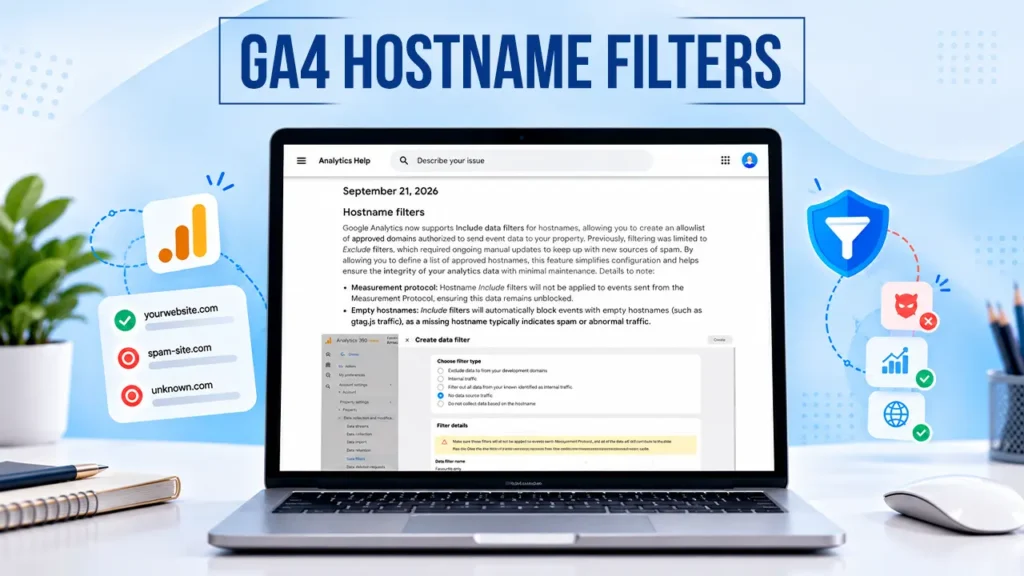
Google introduced a new update to Google Analytics on 21 September 2026. It includes an “include” logic in its GA4 hostname filter that can help website owners keep unwanted and spam traffic out of their analytics data.
It now lets you build a whitelist of approved website names, instead of constantly chasing and blocking data from any domain not on the list.
Let’s understand its new features and steps to create filters.
What Are the New GA4 Hostname Filters?
GA 4 introduced its exclude filter in analytics this year, and now it has a new update with an include feature on 2026 in September 21. This is the GA4 hostname filter with an allowlist.
The idea is pretty simple: instead of continuously finding suspicious hostnames and blocking them one by one, you can now tell GA4 which hostnames you actually trust. Any traffic coming from outside that approved list can be filtered out.
Previously, filtering was limited to the exclude feature only, so it was required to do manual updates to keep up with new spam when it appears.
Also, in this new feature, let your filters in testing mode, which can be live after approval. Also, you can make a list of approved hostnames to help you figure out unapproved hostnames. It minimizes maintenance.
How Do Hostname Include Filters Work in GA4?
Analysts have been struggling for years to clean GA4 from ghost spam.
Now businesses can block unapproved domain data by configuring data ingestion rules using server-side tagging or implementing strict web security policies.
Stop Spam Automatically: After this, any traffic or ghost spam arriving with a fake hostname is stopped. It will also ensure that scraped versions of the website do not corrupt the production analytics database.
Step-by-Step Setup: How to Create a Data Filter
For marketers, SEO professionals, and website owners who need to regularly dig through messy GA4 data, this is going to make traffic management a lot easier.
You can find this under Data Collection and Modifications, with the name Data Filters.
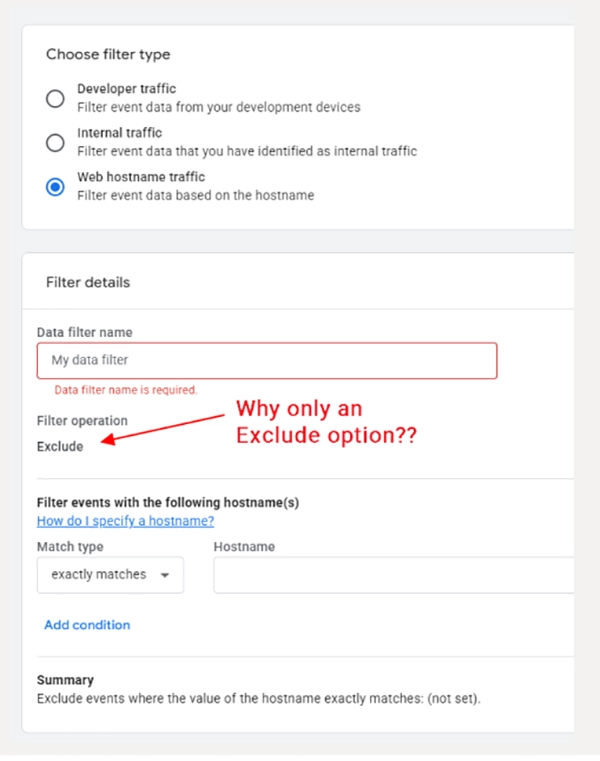
Admin > Data Collection and Modifications > Data Filters
You can create a data filter by following these steps.
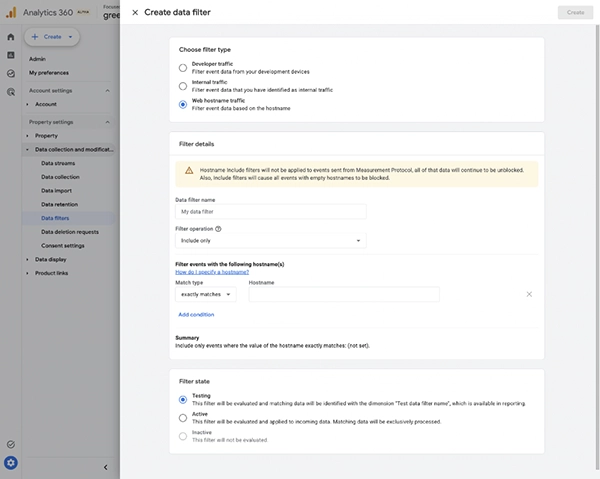
- Navigate to Admin > Data Collection and Modifications.
- Then click on Data Filters.
- Then select your stream and configure your tagging settings.
- Under the filter type selection, choose the Web Hostname Traffic option.
- Then you need to choose a filter operation like “include only” to create an allowlist. Define your approved hostnames by using exact matches for this. An allowlist is the list of approved hostnames.
- Or use Exclude if you simply want to block a specific internal staging server.
- Set the filter in test state so that you can monitor the impact.
- When testing is done, you can activate the filter so that you can drop unfiltered traffic.
Read this: How to Track Traffic From Google AI Overviews: GSC vs GA4
Key Features of the New GA4 Hostname Filters
Now Google Analytics can support include and exclude data filters for web hostnames. It has a few features described below:
Define Authorized Sources
You can define authorized domains from approved sources and make a list as an allowlist.
Empty Hostnames Are Automatically Blocked
For missing hostnames, it automatically blocks them and marks them as blank because it indicates spam or abnormal traffic.
Test Mode
After applying new filters, it automatically goes into testing mode and goes live when you approve it.
Note: It only allows for new data but doesn’t clean up the historical data.
Measurement Protocol Events Remain Unaffected
When you set up the filter for hostnames, you are telling analytics to only accept traffic from the list. However, the Measurement Protocol sends data directly to a backend server like CRM.
Why Does This Update Matter for Digital Marketers?
This new update in Analytics processes reduces your time as a digital marketer.
Reduce Spam: It reduces spam on your website. Spam looks normal at first, but after a little time, it becomes harder to trust.
Less Manual Filtering: For marketers dealing with updates, this toolkit is a time-saver.
Improved Reporting Accuracy: Cleaner data means good reporting. If spam is mixed with data, the reporting becomes a little harder.
Before activating the filter, you need to check the domain and subdomain and Measurement Protocol setups.
Final Thoughts: GA4 Hostname Allowlist Filters
Google Analytics 4 Hostname Filters with Allowlists give website owners a simple way to deal with unwanted event traffic and to Block Spam Traffic and Improve Data Accuracy; it is easy to clean GA4 of ghost spam. Instead of continuously finding hostnames and adding them to the exclusion list, you can now create a list of trusted hostnames.
Read Next – Google Search Console AI Configuration: What Are Its Functions And Utility?

Leave a Comment
Your email address will not be published. Required fields are marked *